

Setup your Gigasheet integration
1
Locate Integrations
On the RevenueBase web application, select
Integrations from the side bar.2
Fill in your account details
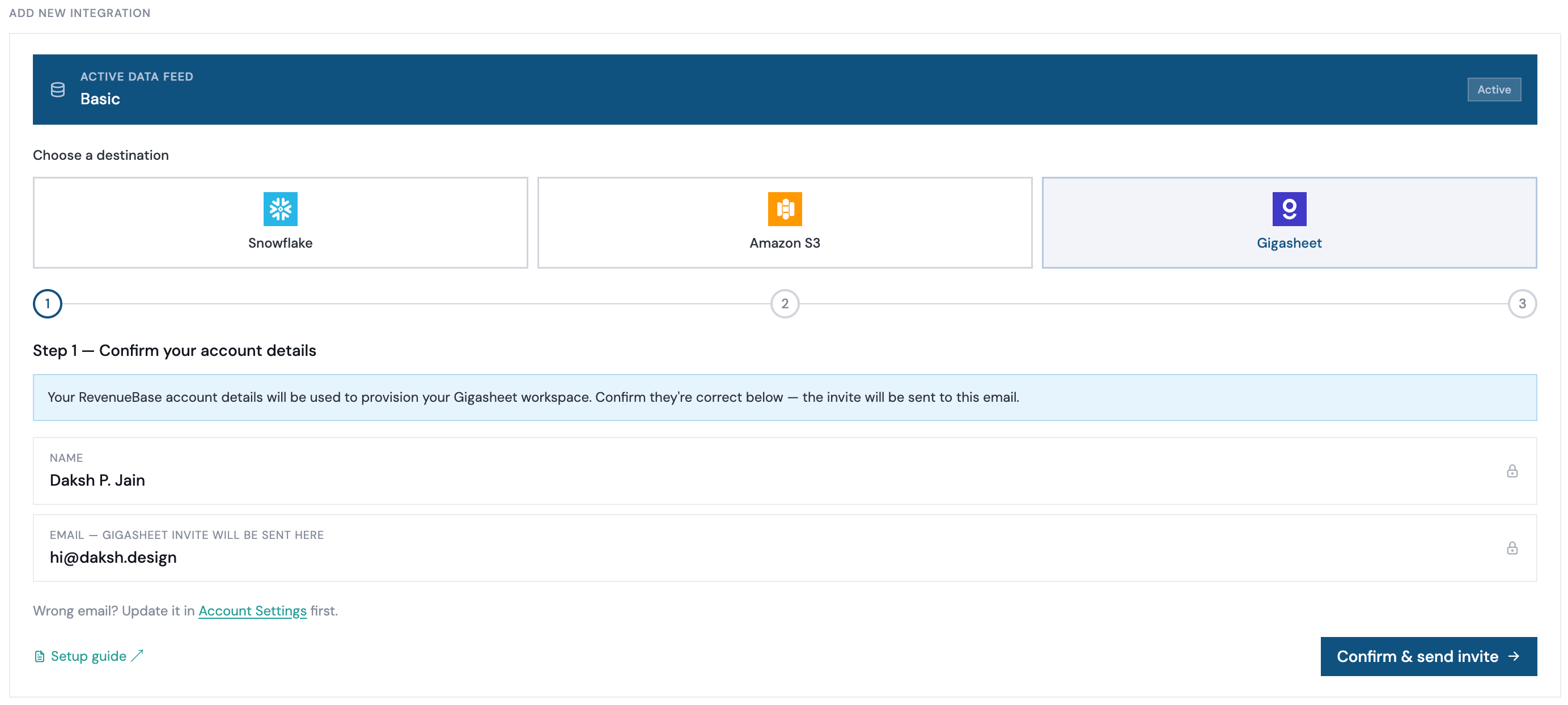
Step 1 — Confirm your account details, submit your name and email.3
Wait for workspace setup
Once your information has been submitted, please allow a few seconds for the Gigasheet workspace to be provisioned.
4
Confirmation
Once your Gigasheet workspace has been provisioned, you will receive an invitation email directly in your inbox to get started.
Log in and open your RevenueBase file
1
Open the RevenueBase file link and log in
Open the RevenueBase file in Gigasheet (or use your Gigasheet URL from your admin). Log in with your credentials. If you use SSO or a custom domain, use the sign-in option your organization has configured.
2
Open Shared with me
Under Workspaces, open the Shared with me section. Your RevenueBase file is listed there.
3
Open your RevenueBase file
Click the RevenueBase file to open your licensed dataset (e.g. people + company or enhanced view). You can then search, filter, save views, export, and enrich your data.
Video walkthrough
Account & login rules
- One account per email. Multiple users cannot log in with the same email — this breaks the system. Each user must have their own email account.
- Business email required. Emails must be on a business domain.
- Consistent email required. If you have multiple business domains, you must access the platform with the email your account was originally created with. Using a different domain email will result in incorrect account permissions.