RELEASES database directly to your Snowflake account. No file downloads or ETL pipelines required. Tables are immediately queryable once you accept the share.
Setup your Snowflake integration
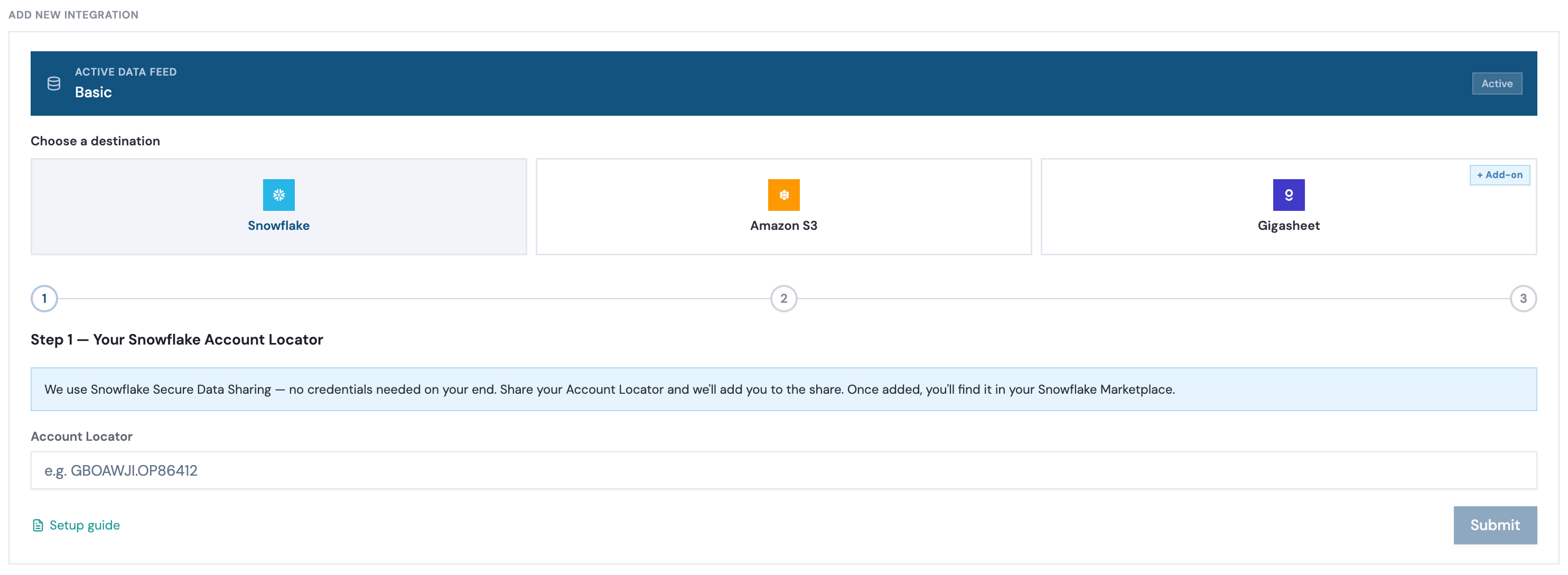
Fill in your Snowflake Account ID

Step 1 — Your Snowflake Account Locator, submit your Snowflake Account ID.You can find your Snowflake Account ID in the bottom-left corner of the Snowflake Dashboard. It looks like
ABC12345-XYZ67890.Wait for email confirmation
Once your Snowflake Account ID has been submitted, please allow up to 10 minutes as we prepare to provision your data share. Once provisioned, you will receive an email to continue.

Accept the share on Snowflake
Once you’ve received an email confirmation, come back to the Snowflake integration to access your Snowflake Marketplace. Once redirected to Snowflake Marketplace, click on “Get” to accept the data share.

How to accept the share from Snowflake:
- In Snowflake, go to Data → Marketplace in the left panel
- Find the share —
RELEASES_EXT_SHAREorRELEASES_RAW_SHARE - Click
Geton the top-right corner, this creates aRELEASESdatabase in your account
Verify access
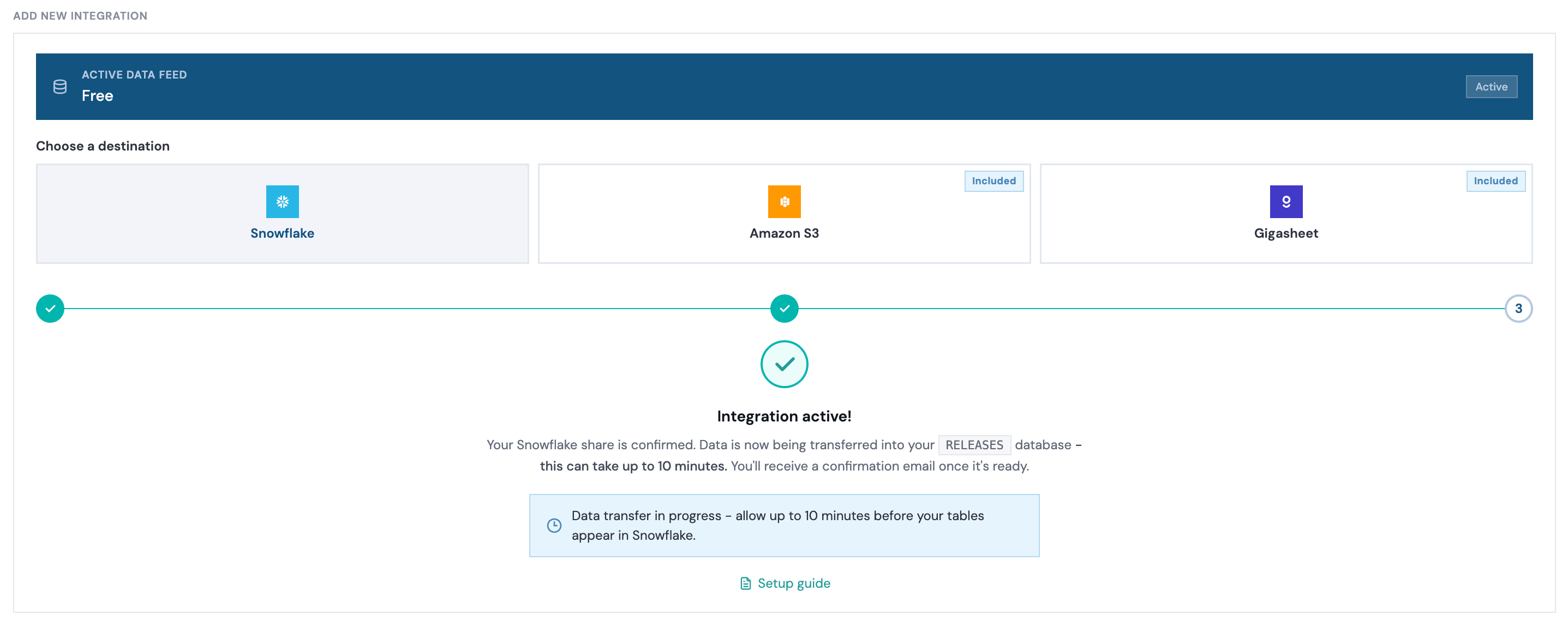
Once you’ve accepted the data share on Snowflake, you’ll see the following confirmation page that initiates the data transfer. This may take up to 10 minutes, and you’ll get an email confirmation when the data share completes.
You can simply test your data access by querying the database:

Table paths
All RevenueBase tables live under theRELEASES database. Use the schema-qualified path when writing queries.
| Table | Snowflake path |
|---|---|
| Person | RELEASES.RELEASE.PER_LATEST |
| Organization | RELEASES.RELEASE.ORG_LATEST |
| Insights | RELEASES.RELEASE.INSIGHTS_LATEST |
| Person + Organization (pre-joined) | RELEASES.RELEASE.VELOCITY_BASE_UNLIMITED_LATEST |
| Person + Organization + Insights (pre-joined) | RELEASES.RELEASE.VELOCITY_ENHANCED_UNLIMITED_LATEST |
| Raw feed | RELEASES.CUSTOM.RAW_FEED_PER_LATEST |