Video walkthrough
Filter your data to build a targeted list
1
Open your RevenueBase sheet
Open your RevenueBase sheet in Gigasheet.
2
Choose a column to filter on
Click the column header for the field you want to filter on (e.g., Industry, Verification status, Employee count).
3
Set filter conditions
Choose Filter or the filter icon and set your conditions (e.g., Industry = Software, Verification status = valid).
4
Narrow or reset
Apply multiple column filters to narrow results further. Clear filters as needed to reset the view.
Advanced filtering examples
RevenueBase offers 150+ filters. The examples below show how to combine them for real-world use cases.Example 1 — Finding SANS-certified cybersecurity teams worldwide
Use case: Find all teams in the world that are SANS certified for cybersecurity. Use the Filter dialog to search Certifications or Skills for “SANS” (with Contains), and add a rule so Email Address is not empty so you only get contactable people. Connect the certification/skills rules with or, then and with the email rule.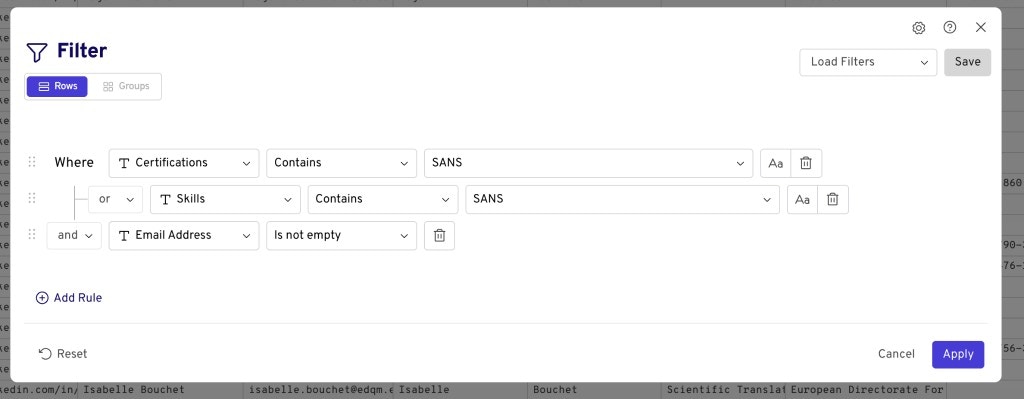
Example 2 — Isolating B2B companies by excluding B2C keywords
Use case: Filter for B2B companies by removing certain B2C keywords from results. Use Does not contain on LinkedIn Company, LinkedIn Organization, and LinkedIn About Us with B2C-oriented terms (e.g., entertainment, wishlist, consumer, membership, shopping, b2c). Combine with or so that any of these fields lacking those terms helps surface B2B companies. Then add and rules for employee count, funding type, job title, job level, and persona as needed.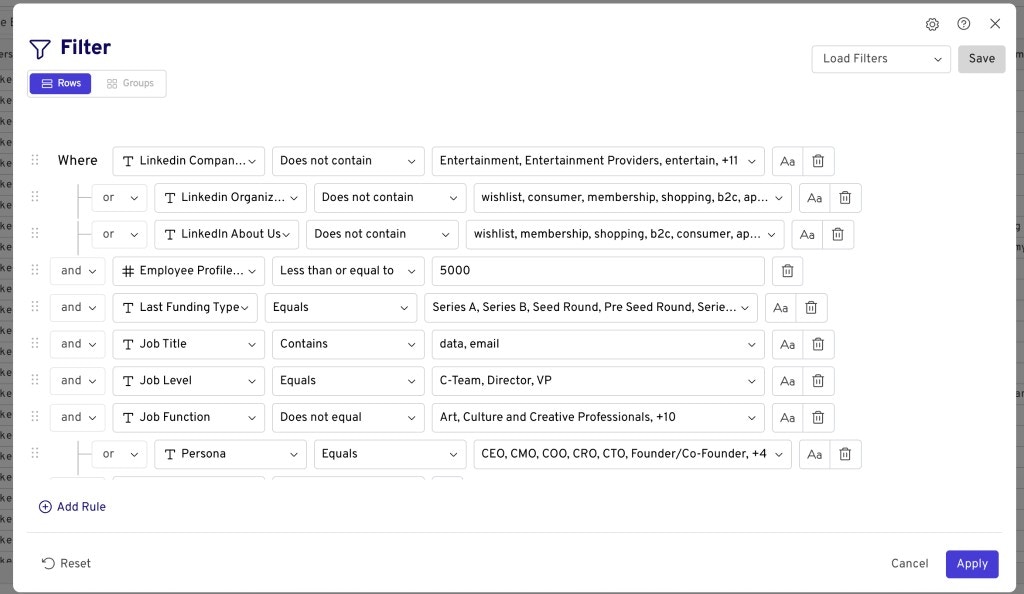
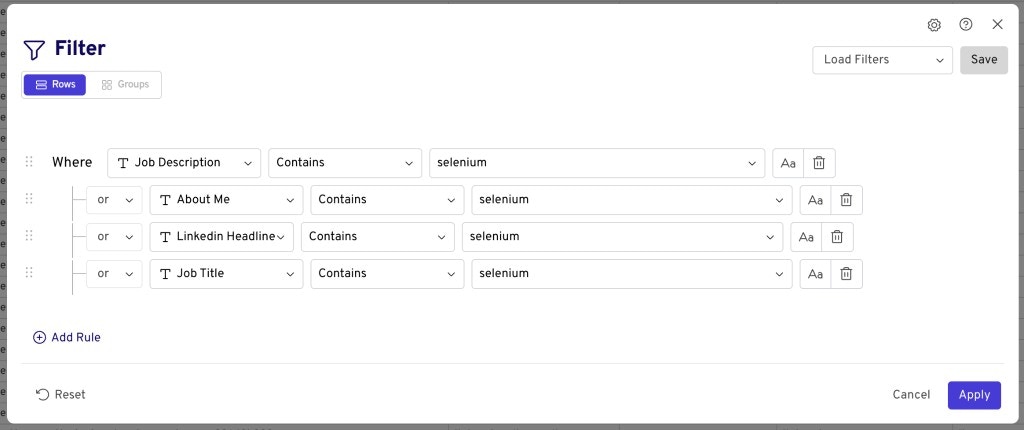
Example 3 — Mining for technologies not in RevenueBase’s preset filters
Use case: Find companies using a specific technology (e.g., Selenium) that isn’t available as a preset filter — by mining current employees’ job descriptions and other text fields. Use the Filter dialog with Contains on person-level text fields such as Job Description, About Me, LinkedIn Headline, and Job Title. Enter the technology name (e.g., “selenium”) in each rule and connect them with or so a match in any field includes the row.