> ## Documentation Index
> Fetch the complete documentation index at: https://docs.revenuebase.ai/llms.txt
> Use this file to discover all available pages before exploring further.
# Filtering
> How to filter RevenueBase data in Gigasheet
Filter your RevenueBase data in Gigasheet to build targeted lists without writing SQL.
## Video walkthrough
## Filter your data to build a targeted list
Open your RevenueBase sheet in Gigasheet.
Click the column header for the field you want to filter on (e.g., **Industry**, **Verification status**, **Employee count**).
Choose **Filter** or the filter icon and set your conditions (e.g., Industry = Software, Verification status = valid).
Apply multiple column filters to narrow results further. Clear filters as needed to reset the view.
Common filters for RevenueBase data include verification status, seniority, department, industry, employee count, and location.
## Advanced filtering examples
RevenueBase offers 150+ filters. The examples below show how to combine them for real-world use cases.
### Example 1 — Finding SANS-certified cybersecurity teams worldwide
**Use case:** Find all teams in the world that are SANS certified for cybersecurity.
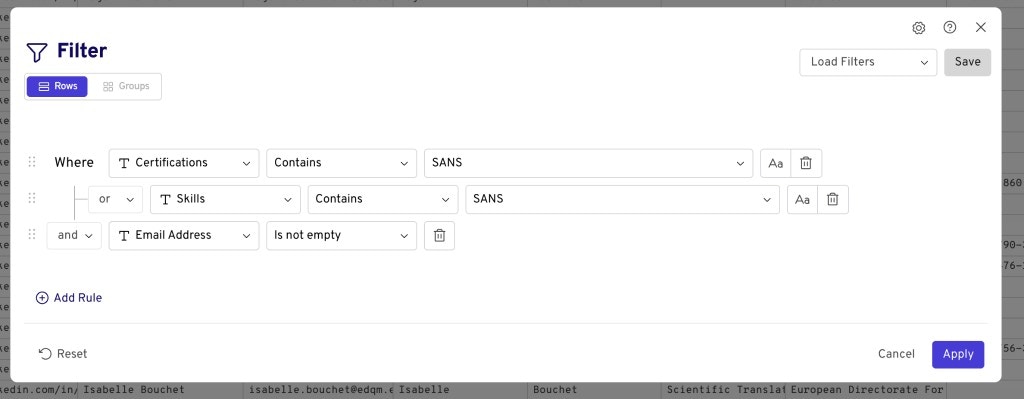
Use the **Filter** dialog to search **Certifications** or **Skills** for "SANS" (with **Contains**), and add a rule so **Email Address** is not empty so you only get contactable people. Connect the certification/skills rules with **or**, then **and** with the email rule.
### Example 2 — Isolating B2B companies by excluding B2C keywords
**Use case:** Filter for B2B companies by removing certain B2C keywords from results.
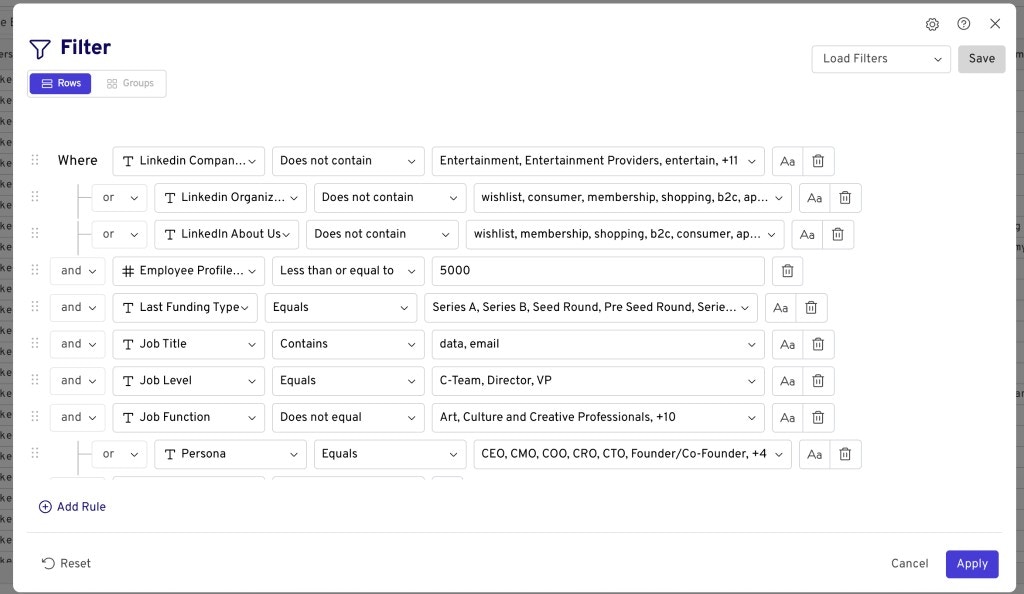
Use **Does not contain** on **LinkedIn Company**, **LinkedIn Organization**, and **LinkedIn About Us** with B2C-oriented terms (e.g., entertainment, wishlist, consumer, membership, shopping, b2c). Combine with **or** so that any of these fields lacking those terms helps surface B2B companies. Then add **and** rules for employee count, funding type, job title, job level, and persona as needed.
### Example 3 — Mining for technologies not in RevenueBase's preset filters
**Use case:** Find companies using a specific technology (e.g., Selenium) that isn't available as a preset filter — by mining current employees' job descriptions and other text fields.
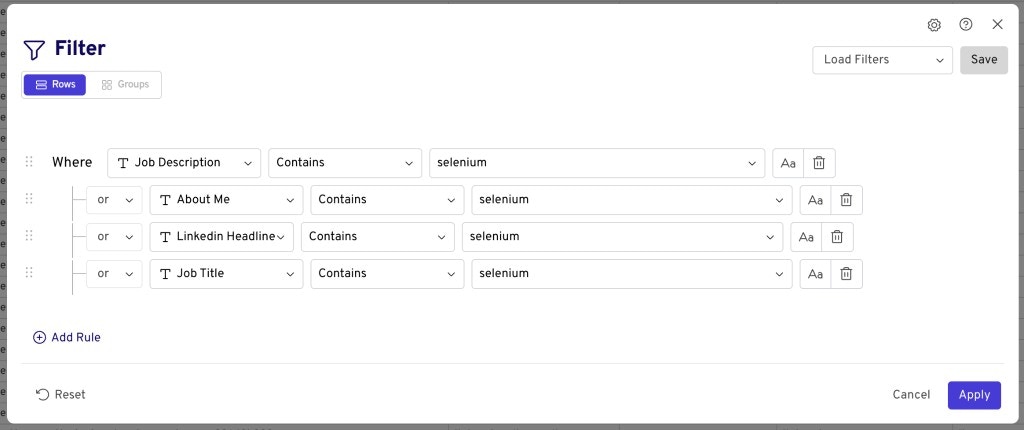
Use the **Filter** dialog with **Contains** on person-level text fields such as **Job Description**, **About Me**, **LinkedIn Headline**, and **Job Title**. Enter the technology name (e.g., "selenium") in each rule and connect them with **or** so a match in any field includes the row.
 ### Example 2 — Isolating B2B companies by excluding B2C keywords
**Use case:** Filter for B2B companies by removing certain B2C keywords from results.
Use **Does not contain** on **LinkedIn Company**, **LinkedIn Organization**, and **LinkedIn About Us** with B2C-oriented terms (e.g., entertainment, wishlist, consumer, membership, shopping, b2c). Combine with **or** so that any of these fields lacking those terms helps surface B2B companies. Then add **and** rules for employee count, funding type, job title, job level, and persona as needed.
### Example 2 — Isolating B2B companies by excluding B2C keywords
**Use case:** Filter for B2B companies by removing certain B2C keywords from results.
Use **Does not contain** on **LinkedIn Company**, **LinkedIn Organization**, and **LinkedIn About Us** with B2C-oriented terms (e.g., entertainment, wishlist, consumer, membership, shopping, b2c). Combine with **or** so that any of these fields lacking those terms helps surface B2B companies. Then add **and** rules for employee count, funding type, job title, job level, and persona as needed.
 ### Example 3 — Mining for technologies not in RevenueBase's preset filters
**Use case:** Find companies using a specific technology (e.g., Selenium) that isn't available as a preset filter — by mining current employees' job descriptions and other text fields.
Use the **Filter** dialog with **Contains** on person-level text fields such as **Job Description**, **About Me**, **LinkedIn Headline**, and **Job Title**. Enter the technology name (e.g., "selenium") in each rule and connect them with **or** so a match in any field includes the row.
### Example 3 — Mining for technologies not in RevenueBase's preset filters
**Use case:** Find companies using a specific technology (e.g., Selenium) that isn't available as a preset filter — by mining current employees' job descriptions and other text fields.
Use the **Filter** dialog with **Contains** on person-level text fields such as **Job Description**, **About Me**, **LinkedIn Headline**, and **Job Title**. Enter the technology name (e.g., "selenium") in each rule and connect them with **or** so a match in any field includes the row.