> ## Documentation Index
> Fetch the complete documentation index at: https://docs.revenuebase.ai/llms.txt
> Use this file to discover all available pages before exploring further.
# Exporting
> How to export RevenueBase data
Export your filtered or searched RevenueBase data from Gigasheet as CSV for use in other tools (CRM, campaigns, etc.).
## Video walkthrough
## How to export
1. In Gigasheet, apply any search or [Filter](/docs/gigasheet/advanced-usage/search-filter-views/filtering) to get the rows you want.
2. Use **File** → **Export** or the export option in the toolbar.
3. Choose format (e.g., **CSV**) and optionally which columns to include.
4. Download the file or send it to a connected destination, depending on Gigasheet’s options.
Exported data follows your RevenueBase license terms. Export only what you need for your use case.
# Exporting to HubSpot
## Prerequisites
* RevenueBase data loaded in Gigasheet (people + organizations or enhanced view).
* A HubSpot account and access to create or update contacts and companies.
## How to save data to HubSpot
1. Filter and select the rows or leave unfiltered to export the current view.
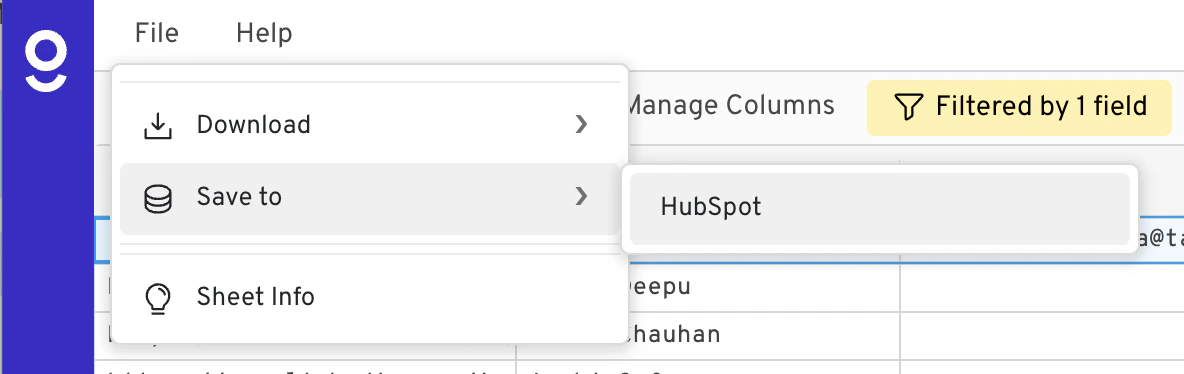
2. Click **File** → **Save to** → **HubSpot** in the toolbar.
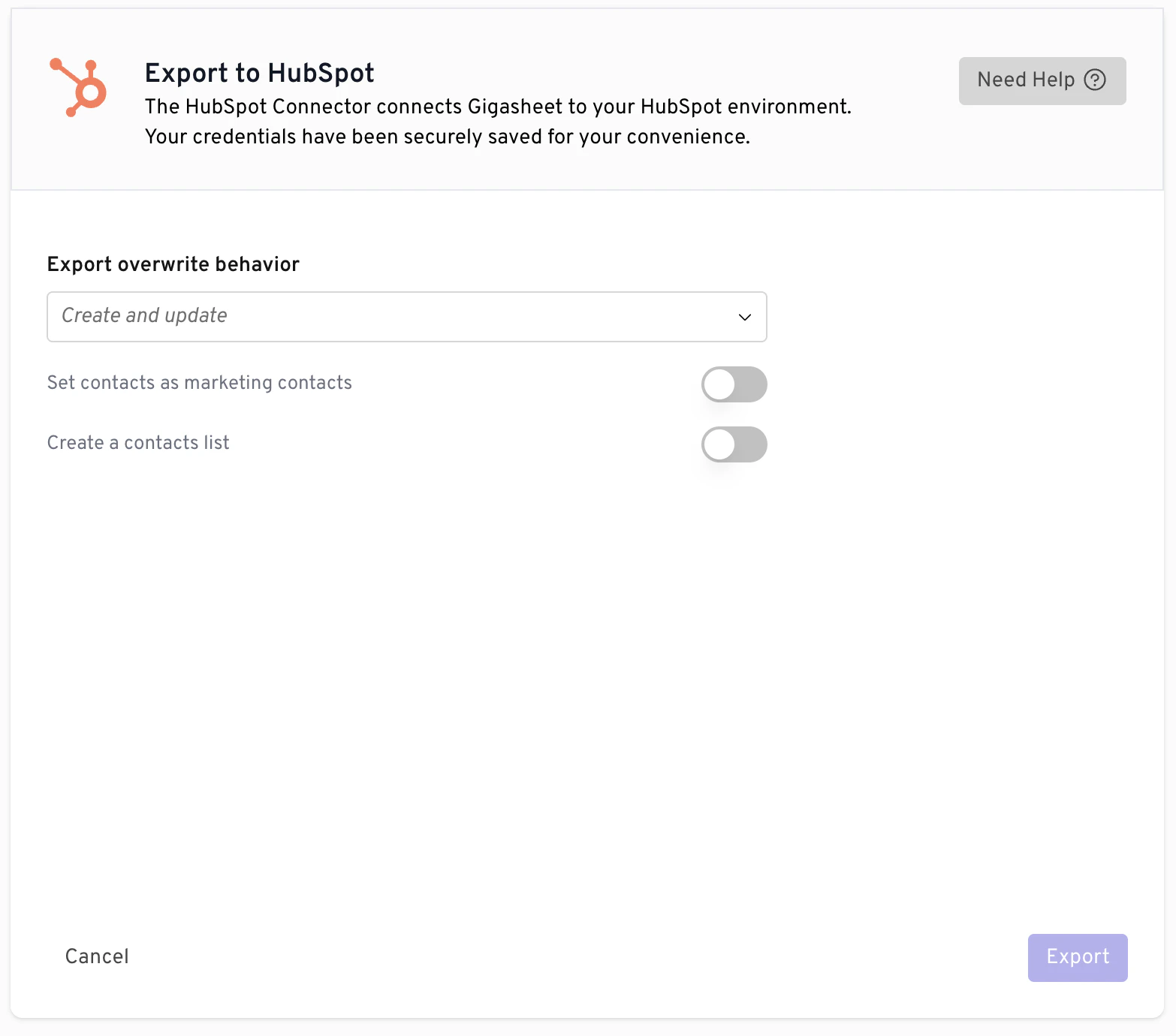
3. Choose your export behavior settings and click **Export**.
Exported data is subject to your RevenueBase and HubSpot license terms. Export only what you need for your use case.
## How to automate data exports to HubSpot
1. Click **Library** on the left sidebar, then select **Data Connectors** under **Other**.
2. Select **HubSpot** as the destination and follow the prompts to connect your HubSpot account.
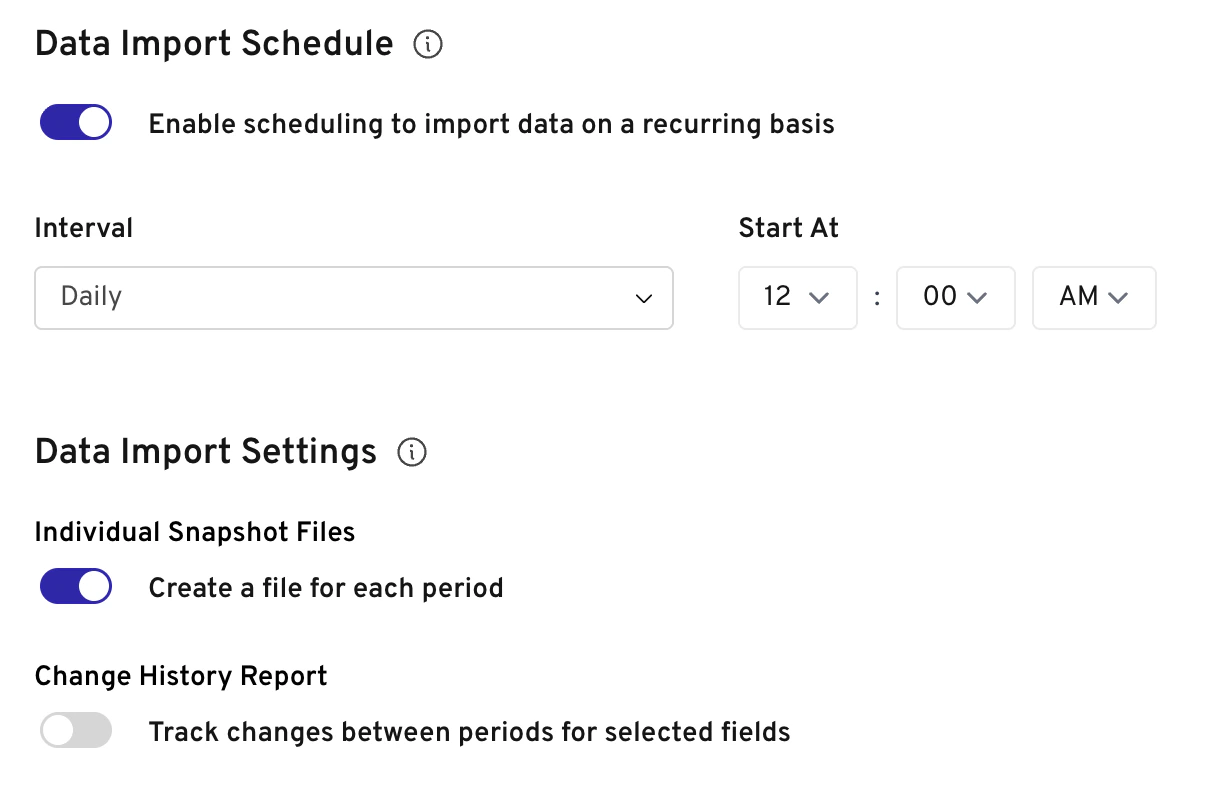
3. Once connected, you can set up automated exports by configuring the automation settings.
If your Gigasheet instance uses a different path for HubSpot (e.g., a custom integration or CSV upload into HubSpot), follow the steps provided in Gigasheet or by your admin. Contact support if you don’t see a HubSpot export option.